Commands & shortcuts
The command palette
Press ⌘+⇧+P (or ⌘+P) to open the command palette. It fuzzy‑finds every action in the app — start typing, use ↑/↓ to move, ↵ to run, and Esc to dismiss. Each command shows its category and keyboard shortcut.
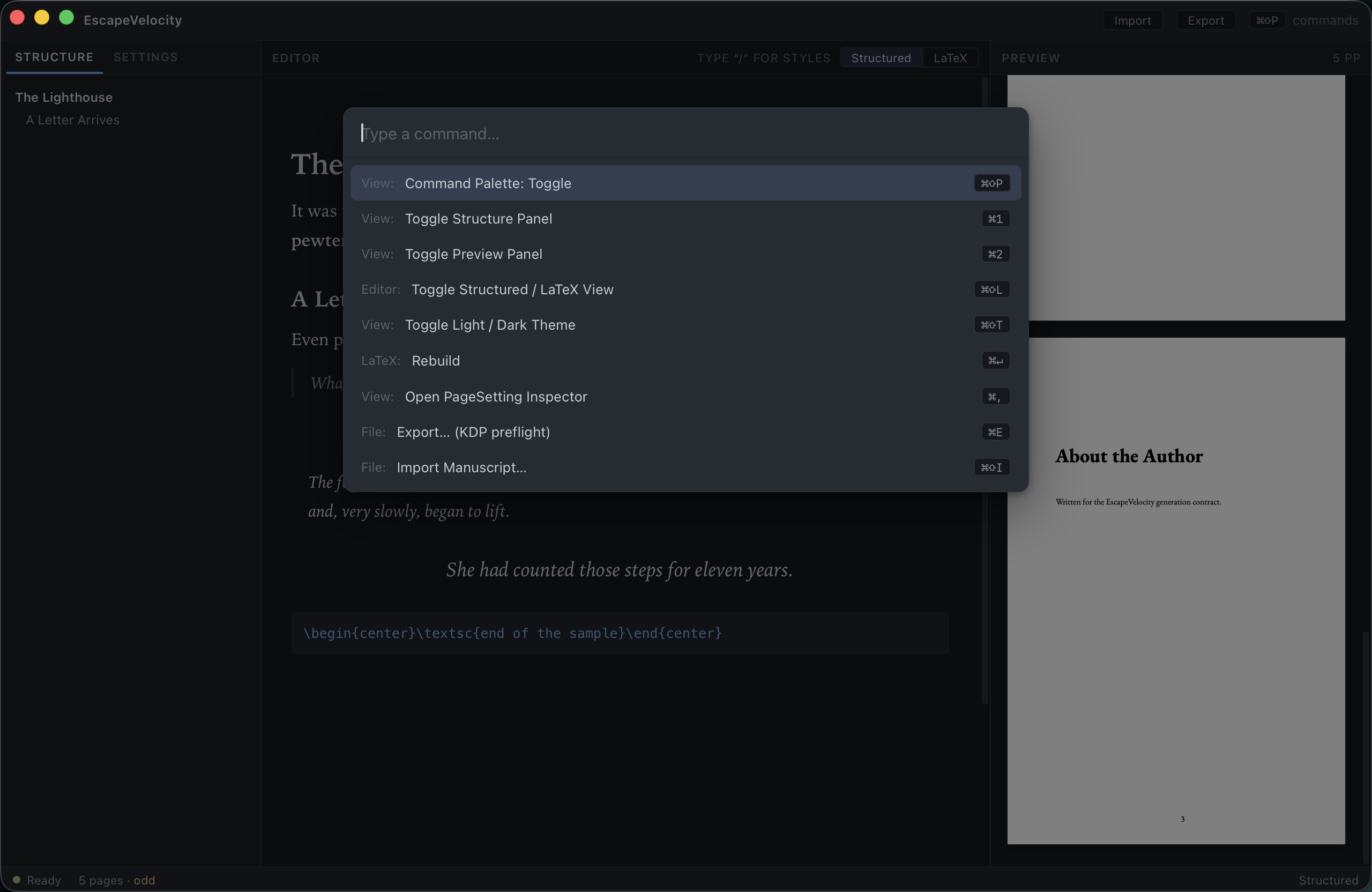
Type to filter to exactly what you want:
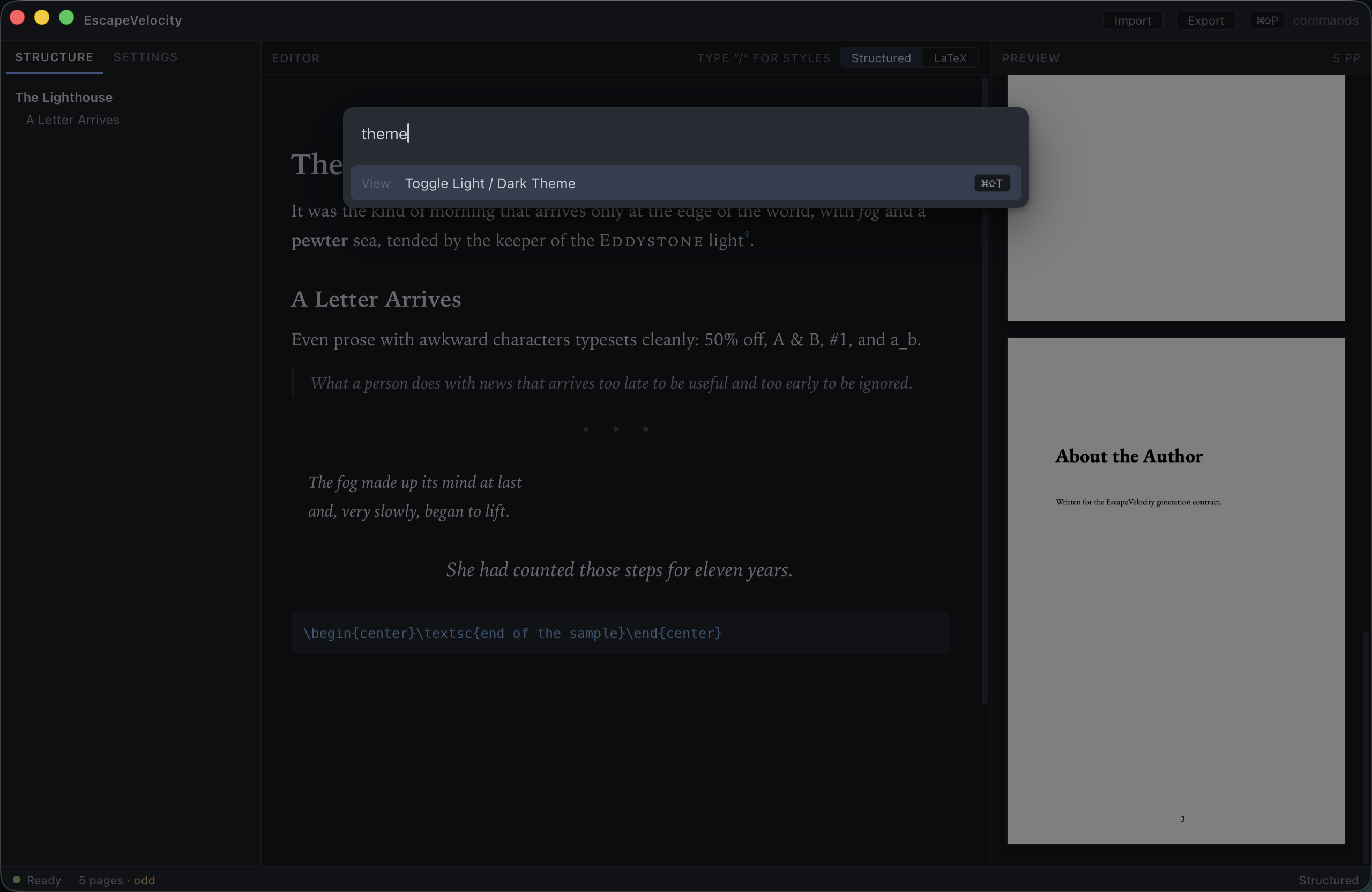
If you can’t recall a shortcut, the palette is the fastest way to find and run any command.
Global shortcuts
| Action | Shortcut |
|---|---|
| Command palette | ⌘+⇧+P (or ⌘+P) |
| Toggle Structure panel | ⌘+1 |
| Toggle Preview panel | ⌘+2 |
| Toggle Structured / LaTeX view | ⌘+⇧+L |
| Toggle light / dark theme | ⌘+⇧+T |
| Open PageSetting inspector (Settings) | ⌘+, |
| Rebuild (recompile) | ⌘+↵ |
| Export… (KDP preflight) | ⌘+E |
| Import manuscript… | ⌘+⇧+I |
Editor: block styles
Apply at the start of a block (or pick from the slash menu with /):
| Block | Shortcut |
|---|---|
| Chapter Title | ⌘+⌥+1 |
| Block Quote | ⌘+⌥+Q |
| Verse | ⌘+⌥+V |
| Pull Quote | ⌘+⌥+P |
| Scene Break | ⌘+⌥+0 |
| Raw LaTeX | ⌘+⌥+R |
Editor: inline marks
| Mark | Shortcut |
|---|---|
| Bold | ⌘+B |
| Italic | ⌘+I |
| Small caps | ⌘+⇧+K |
On other platforms
Shortcuts are shown with the macOS ⌘ (Command) and ⌥ (Option) keys. On Windows/Linux, use Ctrl in place of ⌘ and Alt in place of ⌥.