The workspace
EscapeVelocity is a single window with three resizable panes, a title bar, and a status strip. Every layout choice — pane sizes and which panes are visible — is remembered between launches.
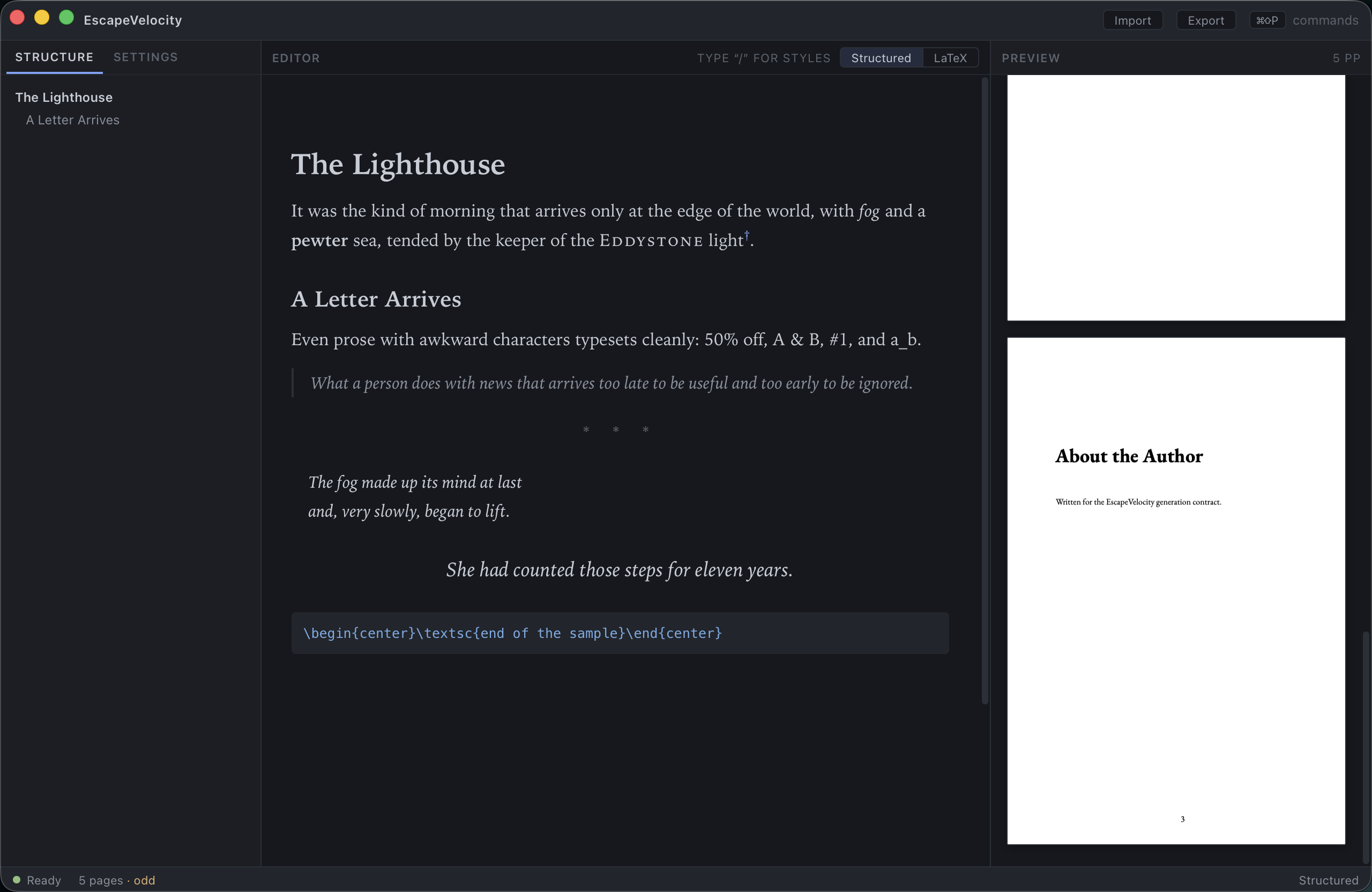
The three panes
Structure (left). A tabbed dock. The Structure tab shows your book’s outline — every chapter, section and heading. The Settings tab is the PageSetting inspector, where you control fonts, trim and margins.
Editor (center). Where you write. It has two views: the visual Structured editor and the read‑only LaTeX source. See Writing your book and Preview & LaTeX.
Preview (right). A page‑true PDF of your book, compiled by Tectonic and rendered at the real trim size. Click any page to jump to its place in the source.
Title bar
The title bar carries the app name and two actions:
| Button | Opens | Shortcut |
|---|---|---|
| Import | Import a manuscript (Markdown / .md) |
⌘+⇧+I |
| Export | Export with KDP preflight | ⌘+E |
A hint on the right (⌘⇧P commands) reminds you of the command palette, which can run every action in the app.
Status strip
The status strip along the bottom reports the state of the typesetting engine and the book:
- Compile status — a colored dot with Ready, Compiling…, or Compile error (hover for the error text).
- Page count — e.g.
5 pages. An · odd flag appears when the count is odd; KDP requires an even page count, and export adds a blank final page automatically. - Editor mode — Structured or LaTeX, matching the center pane.
Adjusting the layout
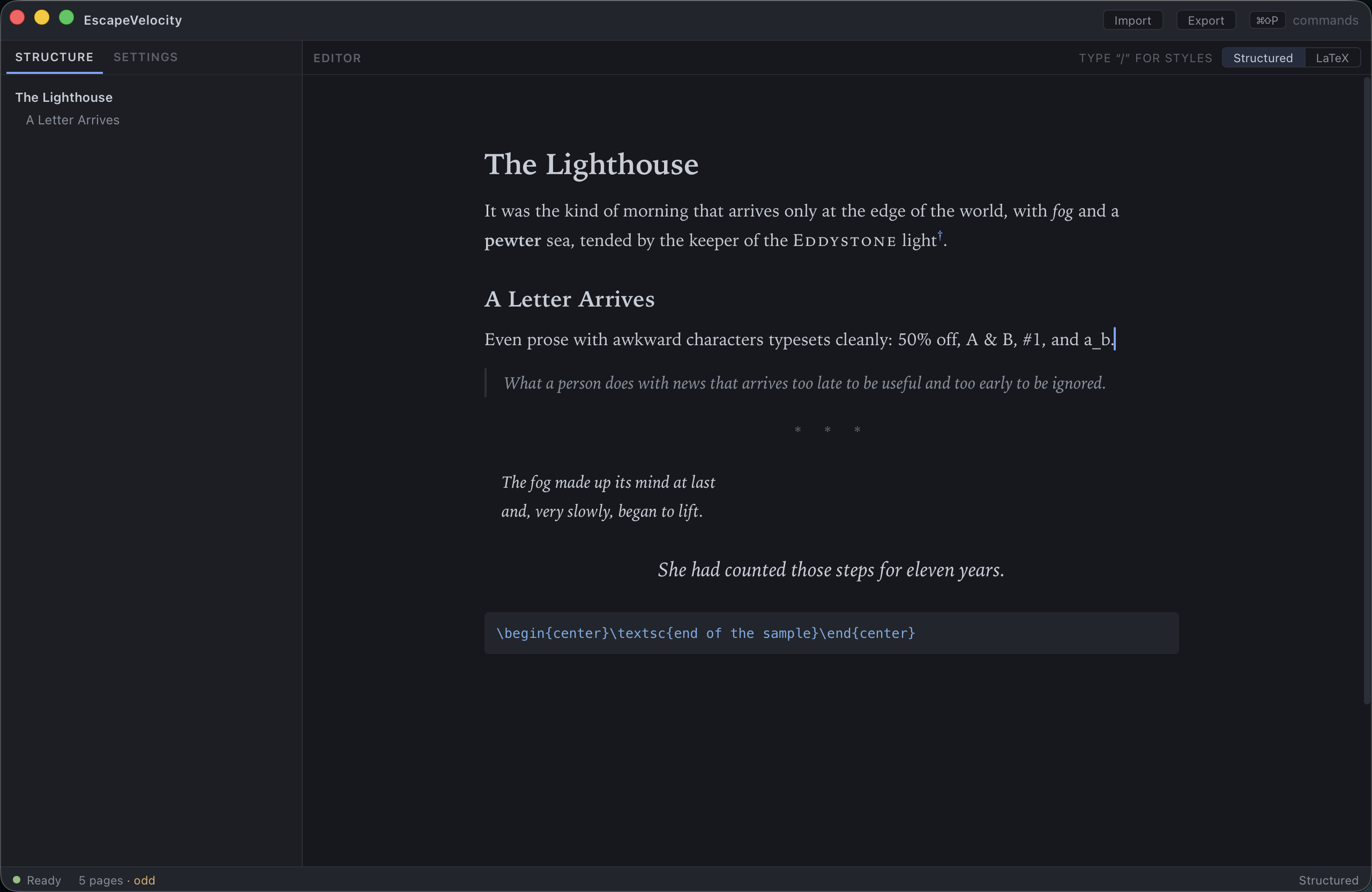
Drag the dividers between panes to resize them; the sizes persist across restarts. You can also hide either side pane to focus on writing.
Press ⌘+1 to collapse the left dock and give the editor and preview more room.
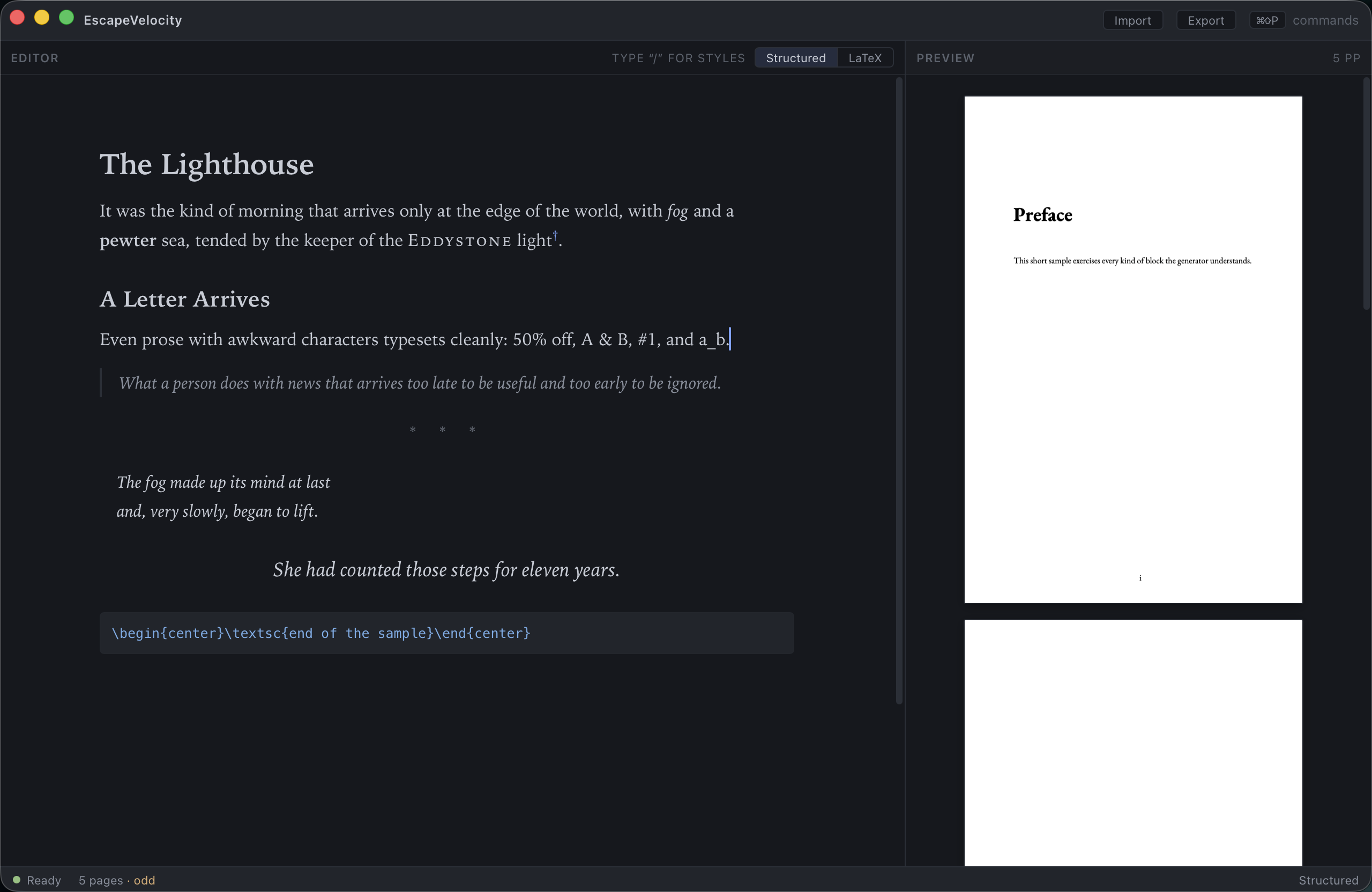
Press ⌘+2 to hide the preview and write full‑width — handy for long drafting sessions.
Both toggles are also available in the command palette.
Light & dark themes
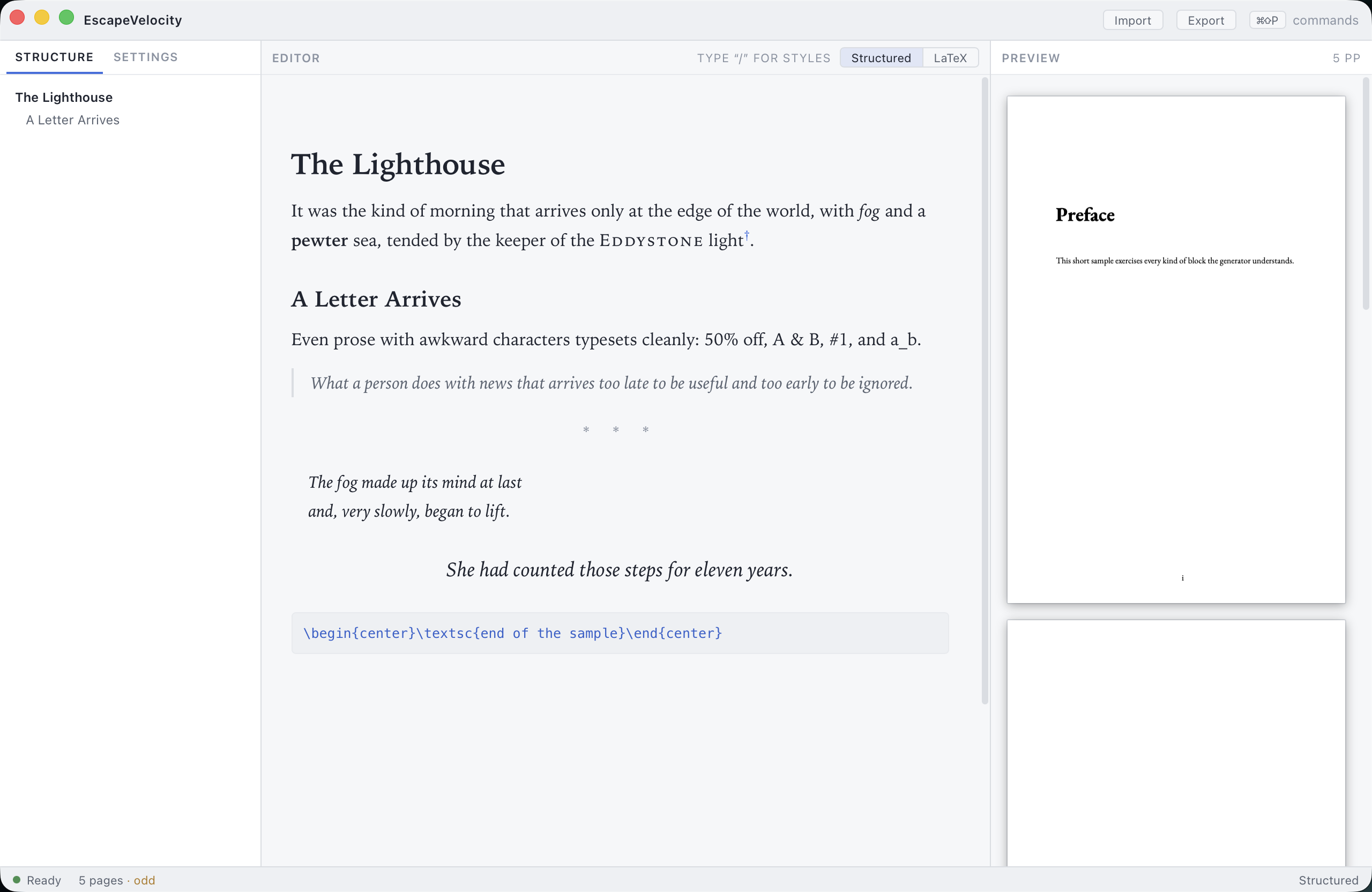
Toggle between light and dark with ⌘+⇧+T (or Toggle Light / Dark Theme in the command palette). Your choice is remembered.
Next: Writing your book →