Exporting for print
When the book is ready, open Export — the title bar button, or ⌘+E. EscapeVelocity runs a KDP preflight, shows you the result of every check, and then writes a print‑ready PDF (or portable LaTeX source).
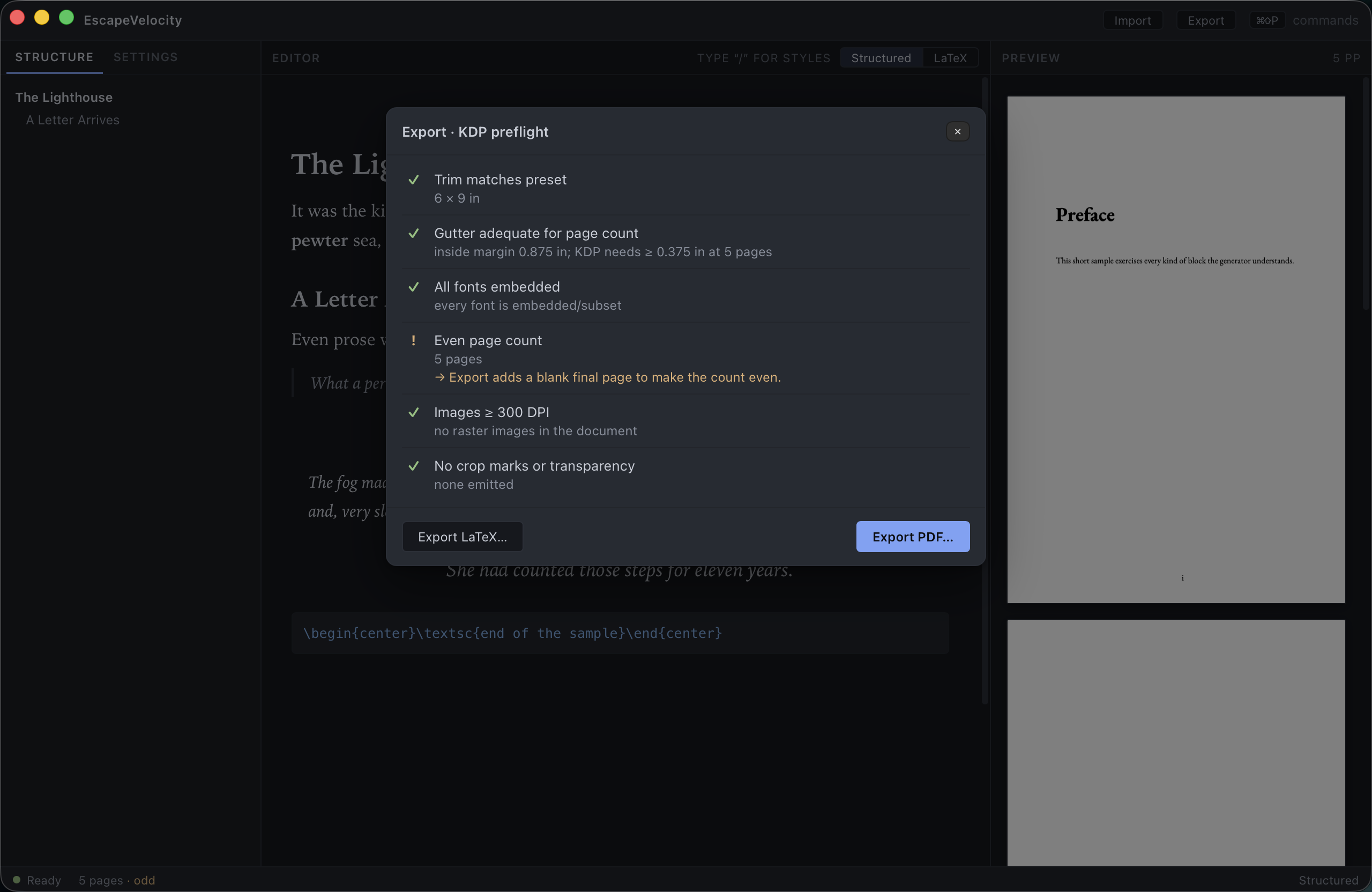
The KDP preflight
Each rule is checked against your current settings and the compiled PDF:
| Check | What it verifies |
|---|---|
| Trim matches preset | The page size equals the selected preset (e.g. 6 × 9 in) |
| Gutter adequate for page count | The inside margin meets KDP’s minimum for your page count |
| All fonts embedded | Every font is embedded/subset in the PDF |
| Even page count | KDP requires an even number of pages |
| Images ≥ 300 DPI | No under‑resolution raster images |
| No crop marks or transparency | None emitted in the interior |
Each row shows a status glyph, a short detail, and — where relevant — the fix.
Passes, warnings, and failures
- ✓ Pass (green) — the rule is satisfied.
- ! Warning (amber) — a non‑blocking issue that export handles for you. The classic example is an odd page count: export automatically appends a blank final page (a “verso”) to make the total even.
- ✕ Failure (red) — a blocking problem. Structural failures prevent the PDF export rather than being silently “fixed,” so you can address them first. (When any check fails, the primary button reads Fix failures to export.)
Export a print‑ready PDF
With no blocking failures, click Export PDF…, choose a location, and EscapeVelocity writes the final file. It reports the exported page count and whether a blank verso was added.
The result is a genuinely print‑ready interior: correct trim, embedded/subset fonts, an even page count, and no stray crop marks or transparency — ready to upload to KDP.
Export portable LaTeX
Prefer to compile elsewhere, hand the book to a designer, or archive the source? Click Export LaTeX… to save a self‑contained main.tex you can compile with any modern TeX engine.
Tips
Preflight early, not just at the end
Because gutter and page‑parity depend on trim, margins and length, it’s worth opening Export (⌘+E) once your layout settles — not only at the very end — to catch a too‑narrow gutter while it’s still easy to fix in the inspector.
Everything is offline
Export uses the same embedded Tectonic engine as the live preview, so it works without a network connection and without a separate TeX installation.
Next: Commands & shortcuts →