Page setup & design
The PageSetting inspector is where you shape the physical book — its trim size, typeface, spacing and margins. Open it with ⌘+, or by clicking the Settings tab in the left dock.
Every control writes to the book’s settings and triggers a debounced re‑typeset, so the whole book re‑flows the moment you change something.
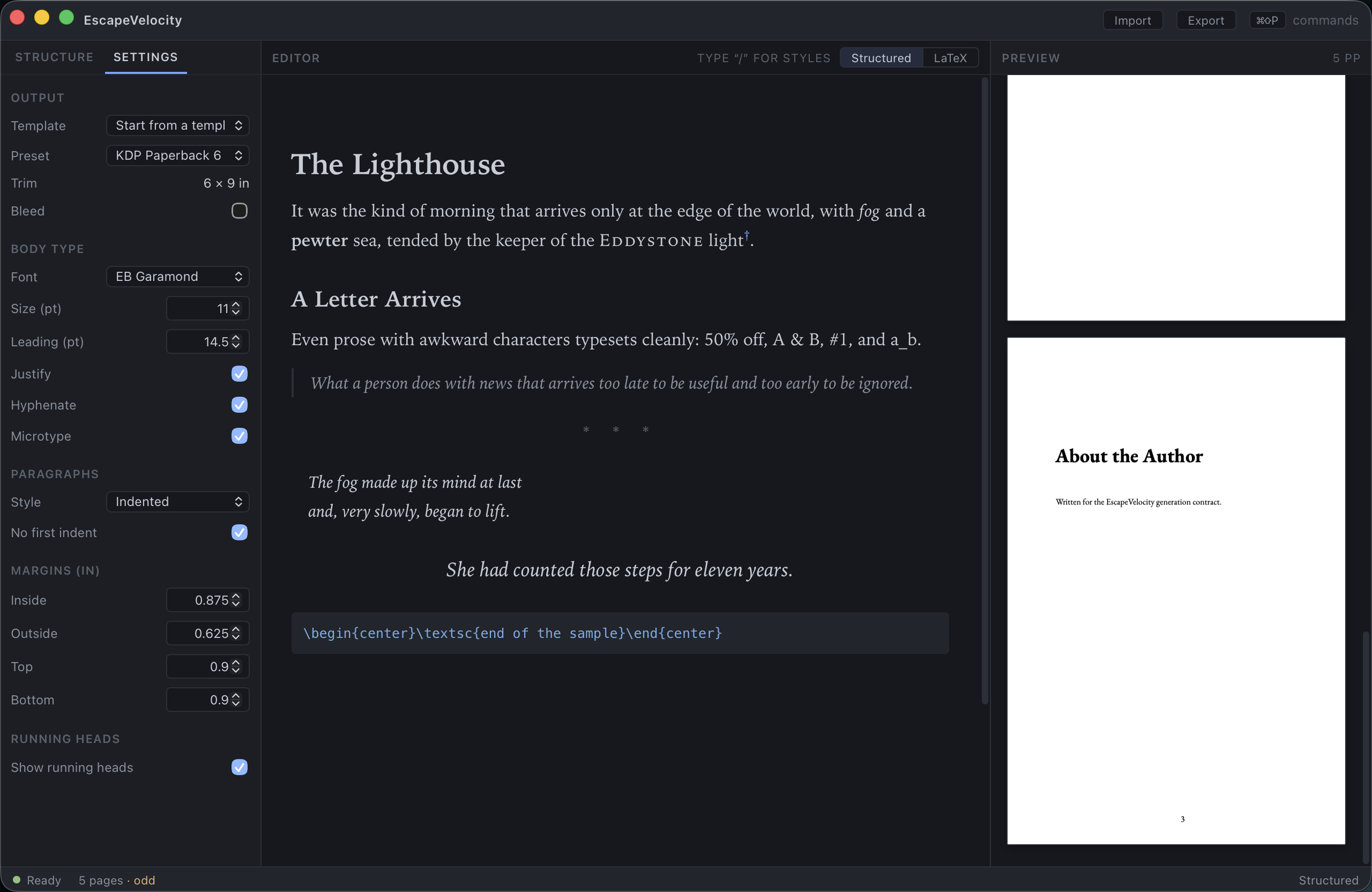
Output
Controls the physical page and where the book is headed.
Template — start from a curated house style that sets font, trim and paragraph treatment all at once:
- Literary Fiction · 5 × 8
- Nonfiction · 6 × 9
- Memoir · 5.5 × 8.5
Choosing a template is the fastest way to get a good‑looking book; you can fine‑tune anything afterward.
Preset — the output trim/target, independent of the template:
| Preset | Trim |
|---|---|
| KDP Paperback | 6 × 9 in |
| KDP Paperback | 5 × 8 in |
| KDP Paperback | 5.5 × 8.5 in |
| KDP | 8.5 × 11 in |
| IngramSpark | 5.5 × 8.5 in |
| IngramSpark | 6 × 9 in |
Trim — a read‑only confirmation of the current page size (e.g. 6 × 9 in).
Bleed — enable if your interior has elements that run to the page edge.
Body type
| Control | Options / range | Notes |
|---|---|---|
| Font | EB Garamond · Libertinus Serif · TeX Gyre Pagella · Latin Modern Roman · Computer Modern | All open‑licensed and embedded in the offline cache |
| Size (pt) | 8 – 16 | Body text size |
| Leading (pt) | 9 – 28 | Line spacing (the distance between baselines) |
| Justify | on / off | Justified vs. ragged‑right |
| Hyphenate | on / off | Allow hyphenation at line breaks |
| Microtype | on / off | Micro‑typographic refinement (character protrusion / font expansion) |
Switching fonts is instant
Change the Font and the entire book re‑typesets in the new face. Every bundled font is already in the offline cache, so there’s no download and no wait.
Paragraphs
- Style — Indented (first‑line indent, the fiction default) or Spaced (blank line between paragraphs).
- No first indent — suppress the indent on the first paragraph after a heading (a common typographic convention).
Margins (inches)
Independent control of Inside (spine/gutter), Outside, Top and Bottom margins. The inside margin doubles as your gutter — the export preflight checks it’s wide enough for your page count.
Running heads
Show running heads toggles the running headers (chapter/section titles) at the top of pages.
A good starting workflow
- Pick a Template close to your genre.
- Confirm the Preset (trim) matches where you’ll publish.
- Adjust Font, Size and Leading to taste — watch the preview re‑flow.
- Set Margins for your page count, then run the KDP preflight.
Next: Preview & LaTeX →