Preview & LaTeX
EscapeVelocity keeps three things in sync: your structured document, the generated LaTeX, and the compiled PDF preview. The document is the source of truth — the other two are produced from it.
The page‑true preview
The right pane renders the compiled PDF with PDF.js at the book’s real trim size, so line breaks, hyphenation, page breaks and margins are exactly what will print. The pane header shows the page count (e.g. 5 pp).
It updates automatically: about half a second after you stop typing — or whenever you change a setting — the book recompiles and the preview refreshes. Force a rebuild with ⌘+↵.
Why it’s trustworthy
The preview isn’t an approximation in a browser engine — it’s the actual PDF produced by the embedded Tectonic (XeTeX) engine, the same file you’ll export. If it looks right here, it prints right.
The LaTeX source view
Switch the center pane to LaTeX (the segmented control in the editor header, or ⌘+⇧+L) to read the clean LaTeX the generator produced — syntax‑highlighted, with line numbers.
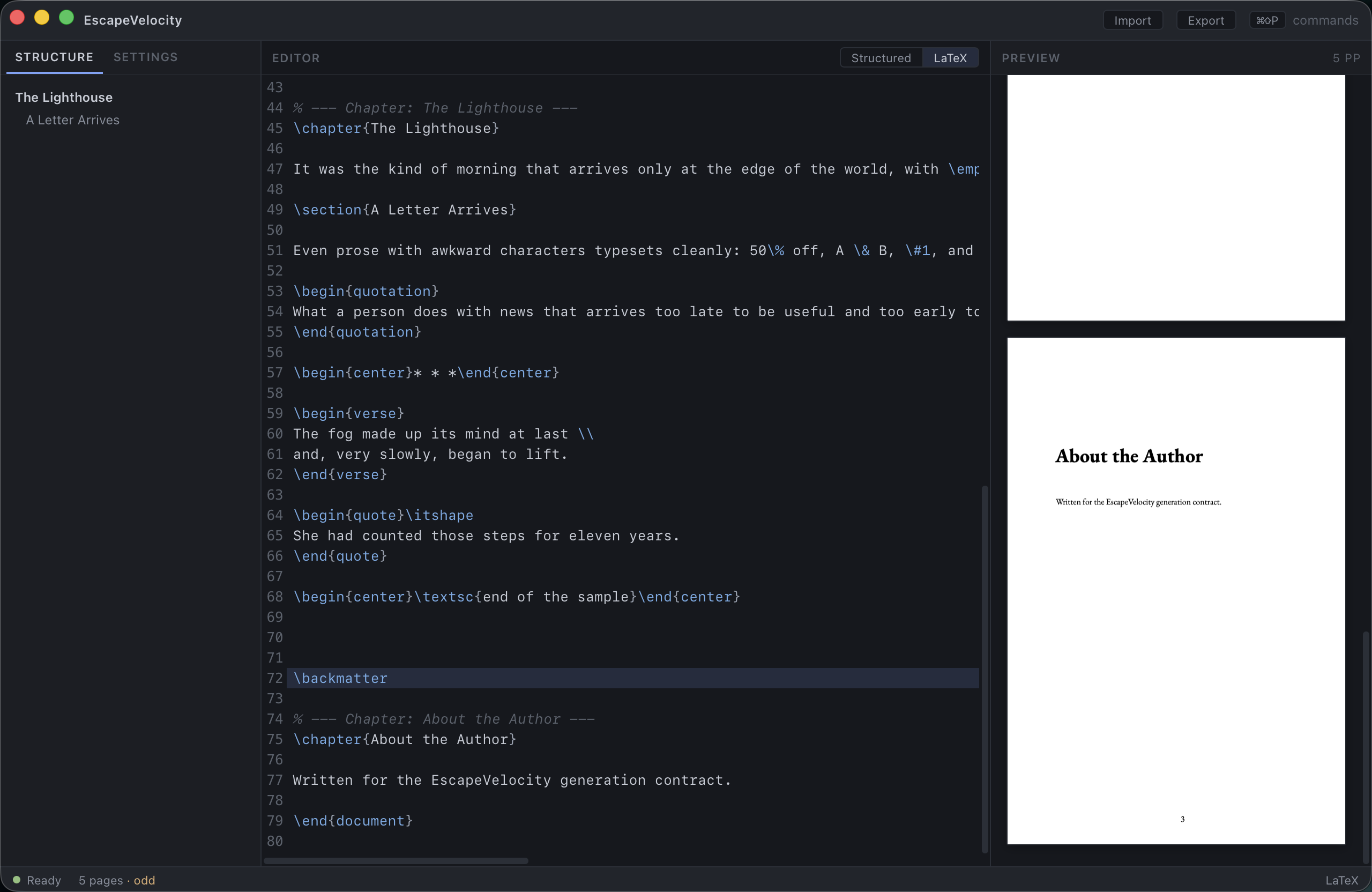
The source is read‑only — it’s a faithful window onto what the generator emits, not a place to hand‑edit (to inject your own LaTeX, use a Raw LaTeX block in the structured editor). Notice how the semantic blocks map to real LaTeX: a chapter becomes \chapter{…}, a section \section{…}, verse a verse environment, a pull quote a centered quote, and so on.
SyncTeX: click to jump
The preview and the source are linked by SyncTeX, so you can move between “where it is on the page” and “where it is in the source”:
- Preview → source. Click anywhere on a page in the preview. The center pane switches to the LaTeX view and scrolls to — and highlights — the matching source line.
- Source → preview. In the LaTeX view, click a line and the preview scrolls to the corresponding page, with a brief flash to show you where you landed.
This makes it easy to find the source behind a specific line of the typeset book, or to see exactly where a passage falls on the page.
Reading the status strip
While all this happens, the status strip tells you what the engine is doing:
- Ready — the preview is current.
- Compiling… — a new typeset is in progress.
- Compile error — something failed; hover the status item for the message. (On a fresh install this usually means the offline cache needs warming.)
Next: Importing a manuscript →